On this page
The server window
The server window is the main window of the server on your computer. It shows the server name and the list of paired devices.
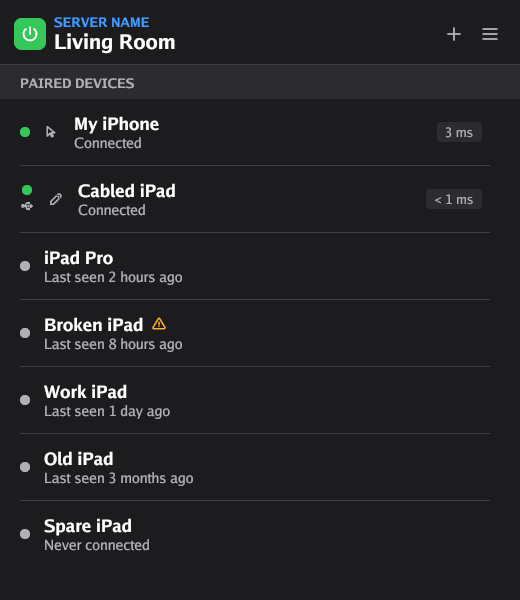
The top row of the window has these controls, from left to right:
| Control | What it does |
|---|---|
| Power button (Stop the server, Start the server) | Stops or starts the server. When the server runs, the button is green. See Stop and start the server. |
| SERVER NAME | The name that your devices show for this computer. Click the name to change it. See The server name. |
| Screen button (Change shared screen) | Selects a different screen for pencil mode. It shows only while pencil mode sends a screen, and only when there is a different screen to select. See The screen for pencil mode. |
| + (Add a device) | Adds a device. See Add a device to the server. |
| Menu button (Menu) | Opens the menu: About, Testing, Settings and Quit. |
The text in parentheses is the tooltip that shows when you put the pointer on the button. The list of paired devices is below the top row. To rename, pair again or delete a device, see Connections.
The menu
| Item | What it does |
|---|---|
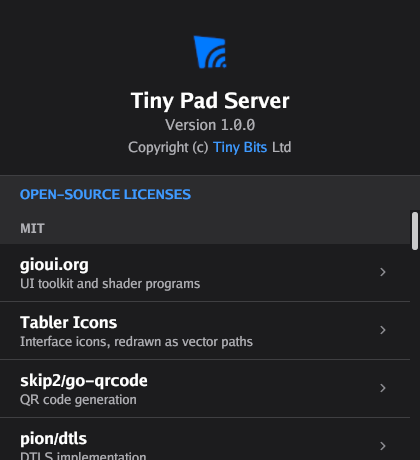
| About | Opens the About window, which shows the version of the server. See The server version. |
| Testing | Opens the Input Testing window. See Test the input. |
| Settings | Opens the Settings window. See Settings. |
| Quit | Stops the server and closes all its windows. |
Text size
You can make the text in the server window larger or smaller. Click the server window first.
| Keys | Result |
|---|---|
| Ctrl + = | Larger text. |
| Ctrl + - | Smaller text. |
| Ctrl + 0 | The usual text size. |
On a Mac, use the Control key, not the Command key.
The tray icon and the menu bar icon
When you start Ilopad yourself, the server window opens. The server also shows an icon. When Ilopad starts because you log in (Start on Login), or starts again after an update, it opens no window. You open the server window from its icon:
- Windows: the icon is in the notification area of the taskbar. If you cannot see it, click the arrow at the right end of the taskbar.
- macOS: the icon is in the menu bar, at the top right of the screen. Ilopad does not show an icon in the Dock.
- Linux: the icon is in the system tray of your desktop.
Click the icon to open the server window. If a menu opens, click Open Configuration. Right-click the icon to open its menu:
| Item | What it does |
|---|---|
| Open Configuration | Opens the server window. |
| Quit | Stops the server. |
On macOS with VoiceOver, press VO + Space on the icon to open the server window. Press VO + Shift + M to show the menu.
When you close the server window, the server continues to run. To stop it, use Quit in the menu of the server window or in the menu of the icon.
If you start Ilopad when it already runs, the window of the running Ilopad opens or comes to the front.
Settings
To open the settings, click the menu button in the server window, then click Settings. Each change applies immediately. The server saves it. Put the pointer on a row to see what it does.
Some rows show only on one operating system, or only when they can have an effect. Thus the Settings window on your computer can have fewer rows than the tables below.
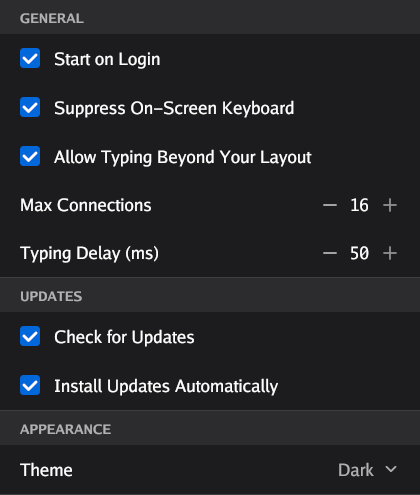
General
| Setting | What it does | Default | Where |
|---|---|---|---|
| Start on Login | Starts the server when you log in to the computer. See The Start on Login entry. | Off | All |
| Suppress On-Screen Keyboard | Stops the on-screen keyboard of the desktop while the server runs. When the server quits, it puts the on-screen keyboard back as it was. It works only on KDE Plasma. | On | Linux |
| Allow Typing Beyond Your Layout | Lets a device type characters that your keyboard layout cannot type, for example emoji or Japanese. See Typing beyond your layout. | Off | Linux, with IBus |
| Windows Firewall | Shows Allowed or Blocked. Blocked means that a device on your network cannot connect to the server. Click the row to let devices in. See The firewall blocks the connection. | None | Windows |
| Capture Display | The display that pencil mode sends to the device. The pencil also goes to this display. Click the row and click a display in the list. | Primary | Windows, with two or more displays |
| Max Connections | The number of devices that can connect at the same time, from 1 to 16. A device that is connected stays connected when you make the number smaller. | 3 | All |
| Typing Delay (ms) | The pause between keystrokes when a device types text, from 1 to 50 milliseconds. Make it longer if long text arrives with missing or incorrect characters. | 2 | Linux |
Updates
| Setting | What it does | Default | Where |
|---|---|---|---|
| Check for Updates | Asks ilopad.com if a newer version of the server exists. When this is off, the server does not connect to the internet by itself. | On | All |
| Install Updates Automatically | Downloads and installs a newer version when the check finds one. | Off | Windows, macOS |
When the check finds a newer version, the server window shows a bar at the bottom: There is a new version available. On Windows and macOS, click Update Now: Ilopad closes, installs the new version and opens it again. If a device is connected, the bar asks first, because the device disconnects. Click Update Anyway to continue, or Cancel. If the update does not install, the bar tells you how to install it yourself. On Linux, the bar tells you how you installed Ilopad. If you installed it with a package manager, the bar gives the command that updates it. You can select the command and copy it. If it was installed manually, download the new version from ilopad.com and install it. The bar goes away when you run the new version.
Appearance
| Setting | What it does | Default | Where |
|---|---|---|---|
| Theme | The colors of the server windows. Light, Dark, or System Default, which follows the setting of your operating system. | Dark | All |
COSMIC Tablet Mapping
This group shows only on the COSMIC desktop.
| Setting | What it does | Default | Where |
|---|---|---|---|
| Display | The display that the pencil maps to. Click the row, then click a display, or Disabled to remove the mapping. The server writes the mapping in the COSMIC settings. See Linux. | Disabled | Linux, COSMIC |
Windows Firewall
A device connects to the server over your network. Windows Firewall must let this traffic in. The installer adds the two firewall rules for you. The server looks at the rules each time it starts. If a rule is missing or old, the server asks you before it changes the rules.
For the messages and the steps, see The firewall blocks the connection. A USB cable does not replace the firewall rules, because the app always connects over the network first. For the names of the rules, see Windows.
Typing beyond your layout
On Linux, the server types text with your keyboard layout. It can type each character that your layout can type, accents included. For other characters, for example emoji, the server must register as an input method in IBus.
The first time a device sends such a character, the server asks Type characters your keyboard cannot?. Click Allow or Not Now. The character that caused the question does not arrive. The next text does.
The server switches to its input method only while it types, and then puts your own input method back. It removes itself when the server quits. You can change your answer with Allow Typing Beyond Your Layout in Settings. When you clear the check box, the server removes its input method immediately.
The screen for pencil mode
In pencil mode, the server sends one screen of the computer to the iPad. The pencil draws on that screen. The server starts to send the screen when a device goes into pencil mode. It stops when no device is in pencil mode.
| System | How you select the screen | How you change it |
|---|---|---|
| Windows | The server uses the primary display. Select a different display with Capture Display in Settings. | Click the screen button in the server window. The Change Screen dialog opens. Click a display, then click OK. |
| macOS | The server selects a display. | Click the screen button in the server window. Pencil mode moves to the next display. Click again to go to the display after that. |
| Linux, X11 | The server selects a monitor. | Click the screen button in the server window. Pencil mode moves to the next monitor. |
| Linux, Wayland | The first time, your desktop asks which screen to share. The server remembers your answer, so the desktop does not ask each time. | Click the screen button in the server window. Your desktop asks again. |
The screen button shows only while pencil mode sends a screen. On Windows, macOS and X11, it shows only when the computer has two or more displays. After the change, the server window shows Screen changed, or Screen selection failed if the change did not work.
On Wayland, share one full screen. Do not share a window, a part of a screen or all screens. If the size of your selection is not the size of a monitor, the server shows Screen Selection:
- Click Choose a Different Screen. Your desktop asks again.
- Or click Keep My Choice. Then the pencil can be inaccurate. To change the screen at a later time, click the screen button in the server window.
On macOS, pencil mode needs the Screen Recording permission. See Ilopad cannot see this screen. For a blank screen on the iPad, see Pencil mode shows no screen.
Test the input
The Input Testing window shows the input that arrives on the computer. Use it to find out if a problem is in Ilopad or in the program that you use.
- Click the menu button in the server window.
- Click Testing.
- Click a tab: Mouse, Keys, Gamepad or Pencil.
When one device is connected, the window opens on the tab for the mode of that device: Pencil for pencil mode, Gamepad for gamepad mode, and Mouse for the other modes.
Mouse
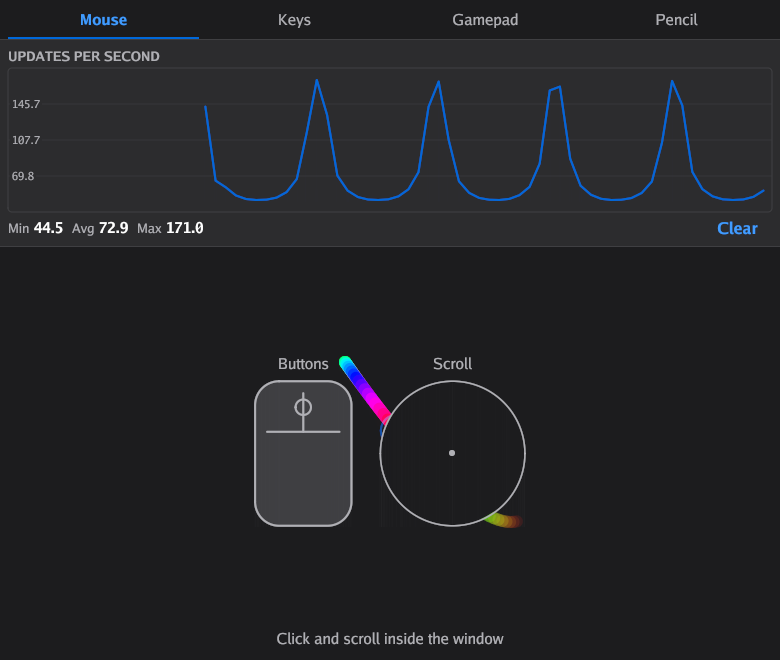
- Put the device in touchpad mode or in pointer mode.
- Move the pointer into the lower part of the window. A colored line follows the pointer.
- Click. The button that you click lights up on the drawing of the mouse.
- Scroll. The Scroll circle shows the direction.
The UPDATES PER SECOND chart shows how many pointer movements arrive in each second. Min, Avg and Max are the lowest, average and highest values. Click Clear to start the chart again.
Keys
The Keys tab shows each key that the server gets from a device. It also shows the keys that you press on the computer keyboard while the window is active.
- The row at the top shows the keys that are held down now. A key that you release stays for a short time, in a lighter color.
- The list shows each press and each release. The newest is at the top. A green down arrow is a press. A red up arrow is a release.
Use this tab to find out if a shortcut sends the correct keys. For example, a shortcut button in the app must show a press and a release for each key.
Gamepad
- Put the device in gamepad mode.
- Press a button in the app. The name of the device shows in the CONTROLLER list.
- Select the device in the CONTROLLER list, if it is not selected.
- Press buttons and move the sticks. The buttons light up on the drawing of the controller. The bars below AXES show the position of each stick and trigger.
On Linux and macOS, the list also shows the controllers that the computer itself sees, for example a controller with a cable. On Linux, this includes the virtual controller that the server makes. Select it to make sure that the computer receives the gamepad input. On Windows, the list shows only your Ilopad devices.
Pencil
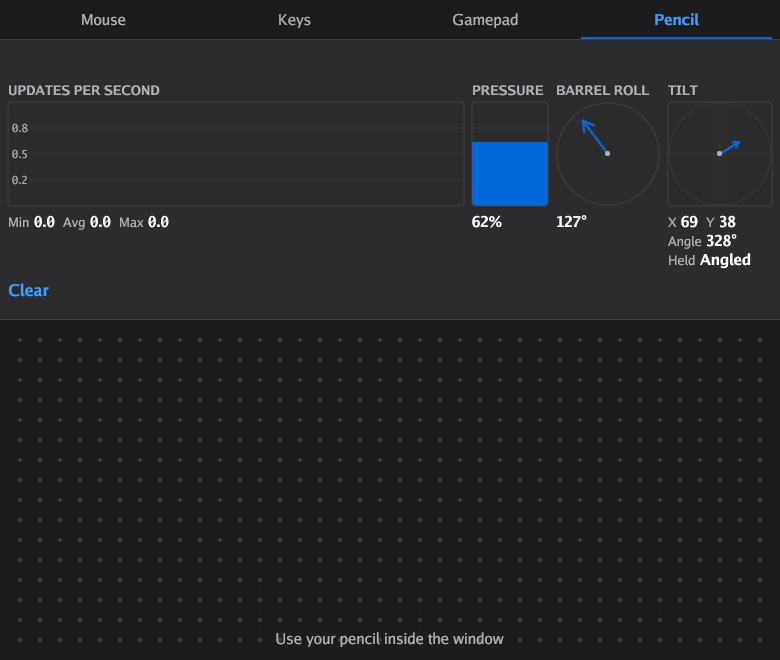
- Put the iPad in pencil mode.
- Find the Input Testing window in the screen on the iPad.
- Draw with Apple Pencil on the dotted area of the window. A line shows where the pencil touches. The line is thicker when you push harder.
The instruments at the top show the last values from the pen:
| Instrument | What it shows |
|---|---|
| UPDATES PER SECOND | How many pen updates the computer gives the window in each second. |
| PRESSURE | How hard the pencil pushes, in percent. |
| BARREL ROLL | The turn of the pencil around its length, in degrees, if your pencil sends it. |
| TILT | The tilt of the pencil. X and Y are the tilt in each direction. Angle is the direction of the tilt. Held is Upright, Angled, Leaning or Flat. |
All values come from the pen that your operating system sees, as a drawing program gets them. Thus you can also test a different pen tablet here, for example a Wacom tablet. A mouse does not draw on the area.
If the pointer moves on the area but no line shows, your operating system gets the pencil as a mouse, not as a pen. See What reaches the computer on each system.
The server version
To see which version of the Ilopad server you use, click the menu button in the server window, then click About. The version shows below the name.