On this page
What pencil mode is
In pencil mode, the app shows a live picture of the computer screen. This manual calls this picture the screen preview. When you draw on the preview with Apple Pencil, the pen draws at the same point on the computer. Drawing apps on the computer receive a pen with pressure and tilt, the same as from a graphics tablet.
Only an iPad with an Apple Pencil is a drawing tablet. Pencil mode is also in the app on an iPhone, but the iPhone does not take an Apple Pencil. On an iPhone, you see the screen preview and you can draw with one finger when Draw with finger is on.
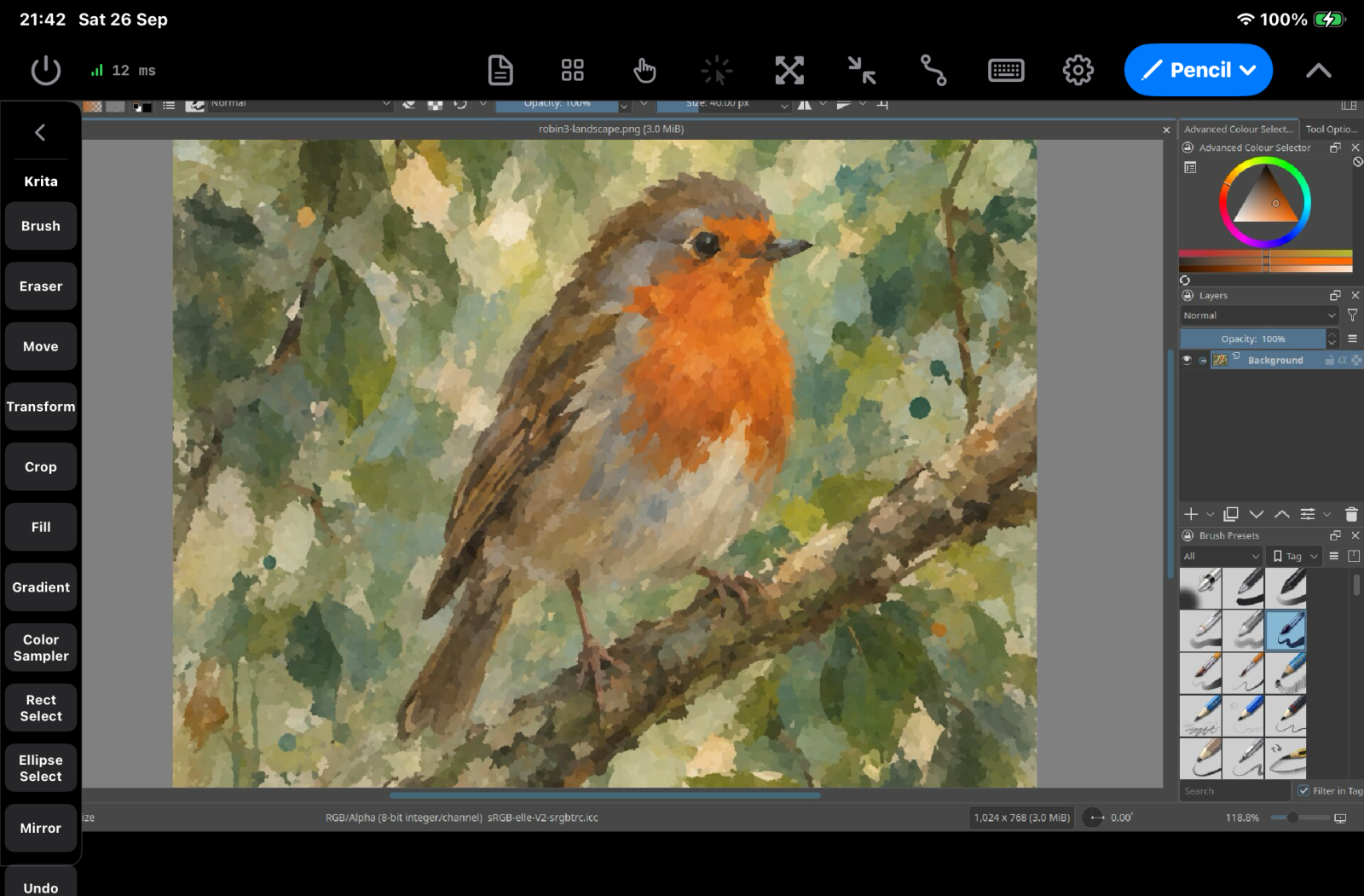
Start pencil mode
- Connect the app to the server. See Add a device to the server.
- In the toolbar, tap the mode button. It shows the icon of the mode that is on now.
- Tap Pencil.
- Hold the iPad in landscape. On an iPhone, pencil mode turns the screen to landscape.
The server starts to send the screen when a device starts pencil mode. It stops when no device is in pencil mode.
What the computer asks the first time
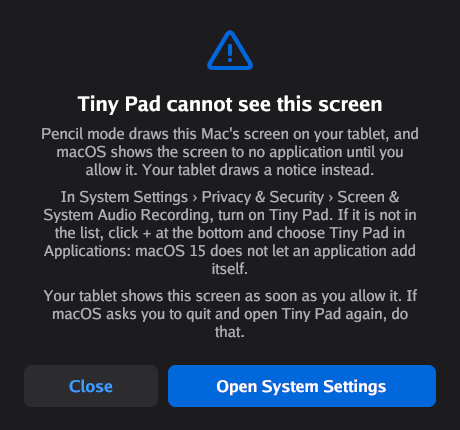
To send the screen, the server must capture it. The first time, the computer can ask you for permission:
- macOS: macOS must allow Ilopad to record the screen. If it does not, the server shows the dialog Ilopad cannot see this screen. For the steps, see Ilopad cannot see this screen.
- Linux (Wayland): your desktop shows its own screen share dialog. Select one screen and allow the share. The server asks the desktop to keep this choice for the next time.
- Windows and Linux (X11): the computer asks nothing.
If the app shows No screen to draw on or This server is too old, see Pencil mode shows no screen.
Select the screen
Pencil mode shows one screen of the computer. If the computer has more than one monitor, you can change the screen on the server:
- Open the server window on the computer.
- Click the screen button at the top of the window. Its tooltip is Change shared screen.
- Select the screen.
What you see after the click depends on the operating system. On Windows, you can also set the screen in the server settings. For each system, see The screen for pencil mode.
The button shows only when you can change the screen. The pen always draws on the screen that the preview shows.
Draw with Apple Pencil
Touch the preview with Apple Pencil and draw. The app sends these values to the computer:
- Position. The point under the pencil tip, also when you zoom, move or turn the preview.
- Pressure. How hard you press. The pressure curve changes it before it goes to the computer.
- Tilt. The angle of the pencil. The tilt is correct also when you turn the preview.
- Barrel roll. How much you turn the pencil around its own axis. Only Apple Pencil Pro gives it, on iPadOS 17.5 or later.
- Hover. When you hold the pencil tip above the screen, the pointer on the computer follows it. This needs an iPad and an Apple Pencil that support hover.
Apple Pencil has no eraser end, and Ilopad does not send a pen eraser. To erase, select the eraser tool of the drawing app. For example, set double tap to Eraser Toggle, or use the eraser button in the app toolbar.
What reaches the computer on each system
| Value | Linux | macOS | Windows |
|---|---|---|---|
| Position | Yes | Yes | Yes |
| Pressure | Yes, all levels | Yes, all levels | Yes, with fewer levels |
| Tilt | Yes | Yes | Yes |
| Barrel roll | Yes | Yes | No, with the pen tablet driver |
| Hover | Yes | Yes | Yes |
On Windows, the Ilopad installer adds a pen tablet driver. Windows gets fewer pressure levels than the iPad sends. The number of levels depends on the pen driver. The pen tablet driver does not carry barrel roll.
If the pen tablet driver is missing, the server tells you: Ilopad is not sending your pen as a tablet. Drawing apps then see a mouse and get no pressure. Run the Ilopad installer again to add the driver.
Windows: a drawing app that cannot see the pen
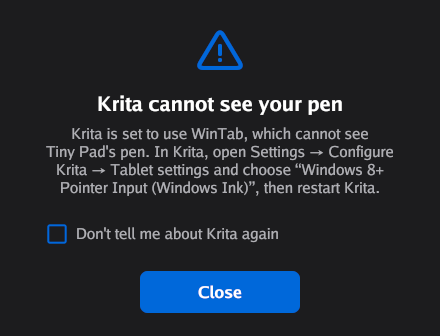
Windows gives apps two ways to read a pen: Windows Ink and WinTab. The Ilopad pen is a Windows Ink pen. Some drawing apps use WinTab by default. They then cannot see the pen. When the server finds such an app in front, it shows a dialog with the fix. Today the server checks Krita.
To test the pen without a drawing app, use the Pencil tab of the Input Testing window on the server. See Test the input: Pencil.
Use your fingers
With Draw with finger off, one finger on the preview sends nothing to the computer. Two and three fingers control the preview:
| Gesture | Result |
|---|---|
| Move two fingers | Moves the preview. |
| Pinch two fingers | Zooms the preview in or out. |
| Turn two fingers | Turns the preview. To stop this, turn off Rotate with Two Fingers in Settings. |
| Tap with two fingers | Undo in the app on the computer. |
| Tap with three fingers | Redo in the app on the computer. |
The zoom, the move and the turn change only the preview on the iPad. They do not change the computer. To zoom the drawing app itself, use Pan the remote screen.
The two-finger tap and the three-finger tap send the undo and redo shortcut of the app in front. You cannot change these two gestures.
When two or more fingers touch the preview, a ring shows under each finger. The ring comes in as a pulse of light and then turns slowly. It shows you where the app reads your fingers. With Reduce Motion on in iPadOS, the ring does not move.
Fit to Screen
Tap Fit to Screen in the pencil mode bar. The whole computer screen then shows below the bar. Fit to Screen also makes a turned preview straight again.
Pan the remote screen
When Pan the remote screen is on in the pencil mode bar, two fingers move and zoom the drawing app on the computer, not the preview. The server sends the pan and zoom shortcuts of that app. A turn of two fingers then does nothing. The control turns off again when you leave pencil mode.
The server knows the pan and zoom of these apps:
- Pan and zoom: Krita, Inkscape, GIMP, Adobe Photoshop, Adobe Illustrator, Affinity, Clip Studio Paint, MediBang Paint, Adobe Fresco, Apple Freeform, Miro, Pixelmator Pro, Canva, Microsoft Whiteboard.
- Zoom only: Goodnotes, Xodo, ArtRage.
In other apps, the gesture does nothing.
Draw with finger
Tap Draw with finger (the hand icon) in the pencil mode bar. One finger then draws as a pen. Two-finger and three-finger gestures still work: a stroke starts a moment after the finger touches, so that the app can see if a second finger comes.
With Emulate Pressure with Finger on, the app sets the pressure from the size of the finger contact. With it off, a finger always draws at full pressure. A finger sends no tilt.
The pencil mode bar
The bar at the top of pencil mode has these controls. Most are icons. The names below are the names that VoiceOver speaks.
| Control | What it does |
|---|---|
| Disconnect, Connection | End the connection, or show the connection details. See Connection state. |
| Templates | Save and load sets of buttons and overlays. See Templates. |
| Edit buttons | Add, move and change your buttons and overlays. See Edit mode. |
| Draw with finger | One finger draws as a pen. See Draw with finger. |
| Mouse emulation | The pencil or finger acts as a mouse. See Mouse emulation. |
| Pan the remote screen | Two fingers pan and zoom the app on the computer. See Pan the remote screen. |
| Fit to Screen | Shows the whole computer screen, straight. |
| Curves | Opens the pressure and tilt curves. See Pressure and tilt curves. |
| Keyboard | Opens the keyboard. What you type goes to the computer. |
| Settings | Opens Settings at the Pencil page. |
| Mode button | Changes the mode. |
| Hide toolbar | Hides the bar. To show it again, tap the tab at the top right corner (Show toolbar). |
When the bar does not have sufficient space, Templates, Fit to Screen, Curves and Settings go into the More controls menu. The bar can also hide itself after some seconds. See Auto-Hide in General settings.
Double tap and squeeze
You can give an action to two Apple Pencil gestures:
- Double Tap: tap two times on the side of the pencil. This needs Apple Pencil (2nd generation) or Apple Pencil Pro. In Ilopad it needs iPadOS 17.5 or later.
- Squeeze: squeeze the pencil. This needs Apple Pencil Pro.
To change the action:
- Tap Settings in the pencil mode bar.
- In Apple Pencil Gestures, tap Double Tap or Squeeze.
- Tap an action in Presets. Or tap Custom Key Combo and select a key.
| Preset | What it does |
|---|---|
| Undo | Undo. Default for Double Tap. |
| Redo | Redo. |
| Eraser Toggle | Selects the eraser of the app. |
| Brush Toggle | Selects the brush of the app. |
| Pick Color | Picks the color under the pointer. In Photoshop, Krita and some other apps, it holds the pick key and clicks, so the brush stays selected. In other apps, it selects the eyedropper tool. |
| Toggle Overlay | Hides or shows your overlays on the iPad. It sends nothing to the computer. Default for Squeeze. |
A preset names an action, not a key. When Ilopad knows the app in front, it sends the shortcut of that app for the action. When it does not know the app, it sends a standard key: Ctrl+Z for Undo, Ctrl+Shift+Z for Redo, E for the eraser, B for the brush, and Alt+click for the color. On a Mac, Command replaces Ctrl.
A custom key is always sent as you selected it.
Shortcuts for the app in front
In pencil mode, the server tells the app which app is in front on the computer. To see it, tap Connection in the pencil mode bar. The row Active App shows the name.
Ilopad uses this information in these places:
- The app toolbar at the left shows the tools and shortcuts of that app. See The app toolbar.
- Double Tap, Squeeze and the two-finger and three-finger taps send the shortcut of that app.
- Pan the remote screen uses the pan and zoom keys of that app.
The shortcuts are correct for the system of the computer. For example, Undo is Command+Z on a Mac and Ctrl+Z on Windows and Linux. Where an app uses a different key on one system, Ilopad sends the key for that system.
On Windows and macOS, the server sees the app in front. On Linux, this depends on the desktop. The server has support for KDE Plasma, GNOME, Sway, Hyprland and X11 desktops.
If Ilopad does not know the app, you can select its toolbar by hand. See The app toolbar.
Mouse emulation
Some programs, for example many games, ignore pen input. For these programs, turn on Mouse emulation in the pencil mode bar. The pencil or your finger then acts as a mouse with a left button.
The control is available after the app sees an Apple Pencil, or when Draw with finger is on. The first time you turn it on, the app shows how it works. To stop this message, select Don't show this again.
| You use | Move the pointer | Click |
|---|---|---|
| A pencil with hover | Hover above the screen. | Touch the screen. Move while you touch to drag. |
| A pencil without hover | Draw lightly. | Press harder than the Click Pressure value. |
| A finger (Draw with finger on) | Move your finger. | Tap. Tap two times to double-click. To drag, tap, then touch again and hold while you move. |
To set how hard you press for a click, use Click Pressure in Settings. Tap Test Click Pressure to try it: a bar shows your pressure and a line shows the click point.
Pressure and tilt curves
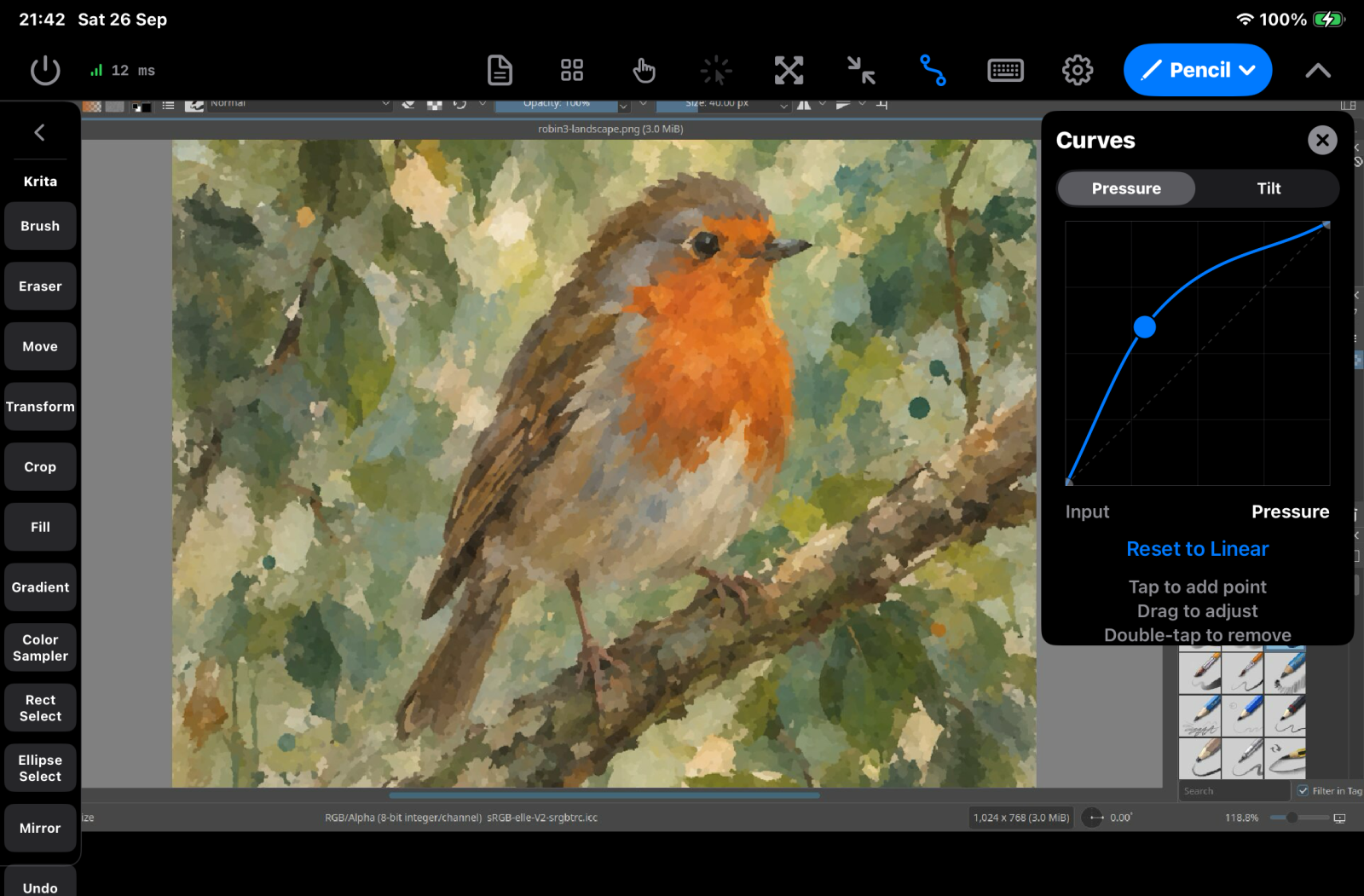
A curve changes the pressure or the tilt before it goes to the computer. For example, a curve can give more pressure for a light touch. The curves have an effect on the pencil only, not on a finger.
- Tap Curves in the pencil mode bar.
- Tap Pressure or Tilt.
- Tap the graph to add a point.
- Drag a point to change the curve.
The horizontal axis is what the pencil gives. The vertical axis is what the computer receives. The two end points do not move. To remove a point, tap it one time. The panel says to double-tap, but a second tap adds a new point. To go back to no change, tap Reset to Linear.
When a curve is not linear, the Curves icon shows in the accent color. The curves stay the same for all servers.
Pencil mode settings
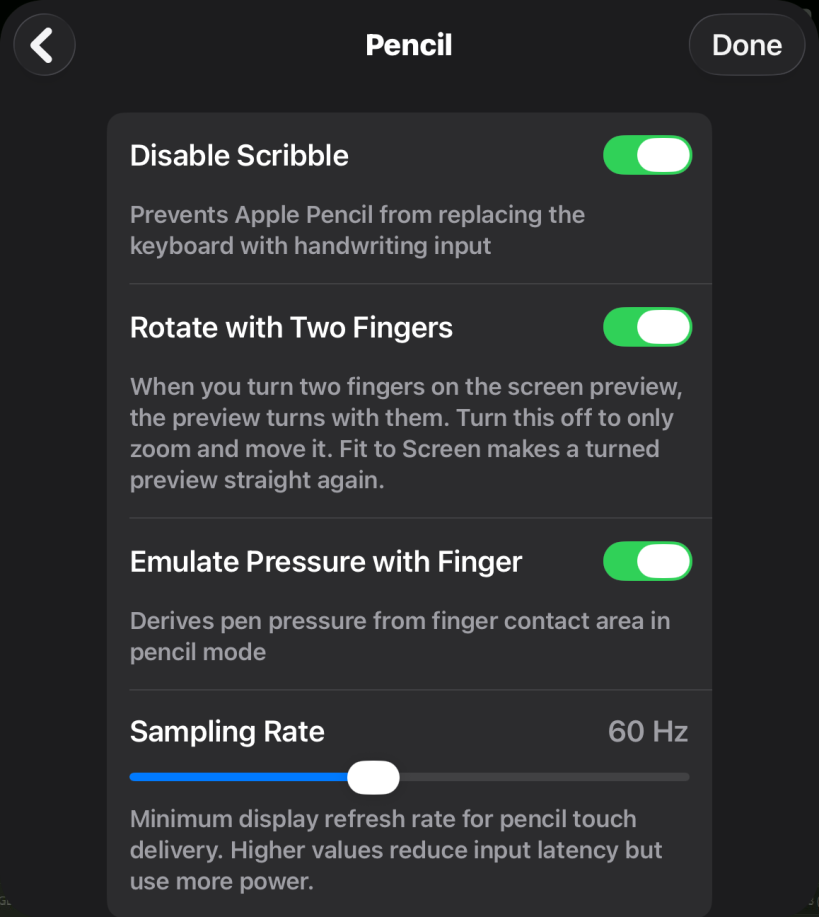
To open the settings, tap Settings in the pencil mode bar. Settings opens at the Pencil page. From other modes, open Settings and tap Pencil. These settings are the same for all servers.
| Setting | What it does | Default |
|---|---|---|
| Disable Scribble | Stops Apple Pencil handwriting from replacing the keyboard when you type to the computer. | On |
| Rotate with Two Fingers | A turn of two fingers turns the preview. With it off, two fingers only zoom and move the preview. | On |
| Emulate Pressure with Finger | With Draw with finger, sets the pressure from the size of the finger contact. With it off, a finger draws at full pressure. | On |
| Sampling Rate | The lowest screen refresh rate of the iPad in pencil mode, from 15 to 120 Hz. A higher rate gives less input delay, but uses more power. It has an effect on an iPad with a 120 Hz screen. | 60 Hz |
| Stroke Prediction | Draws a white line on the iPad ahead of the pencil tip, where the stroke will go. It hides the delay until the computer draws the stroke. The line goes to the iPad only, not to the computer. | On |
| Prediction Distance | The longest predicted line, in points (20 to 150). Shows when Stroke Prediction is on. | 80 |
| Line Width Multiplier | The width of the predicted line (0.5 to 3.0). Shows when Stroke Prediction is on. | 1.0 |
| Click Pressure | In Mouse Emulation, for a pencil without hover: how hard you press for a click (5% to 95%). A lighter touch moves the pointer. | 50% |
| Test Click Pressure | Opens a test area for Click Pressure. | |
| Double Tap | The action for a double tap on Apple Pencil. See Double tap and squeeze. | Undo |
| Squeeze | The action for a squeeze of Apple Pencil Pro. | Toggle Overlay |
| Frame Rate | In Screen Preview: how often the preview refreshes (10 to 60 fps). A higher rate is smoother, but uses more battery and network. | 15 fps |
| Sharpen When Still | When the computer screen stops changing, the server sends the picture again with no compression. Photographs and gradients then become exact. It uses the network only while nothing moves. Turn it off on a metered connection. | On |
Two more settings are in the pencil mode bar, not on this page:
- Mouse emulation is off by default. The app keeps your choice.
- The pressure and tilt curves are linear by default.
App toolbar, buttons and overlays
Pencil mode also has the app toolbar, overlays and your own buttons. The app toolbar has the tools of the app in front. An overlay shows a part of the screen. Your own buttons send one or more actions. App toolbar, buttons and overlays tells you how to use them.
Tips
- Use a USB cable. For the best result in pencil mode, connect the iPad to the computer with a USB cable. See Connect with a USB cable.
- Keep Stroke Prediction on. The predicted line shows where the stroke goes before the computer draws it.
- Increase the Sampling Rate on an iPad with a 120 Hz screen for the lowest input delay.
- Zoom the preview, not the app. Pinch to zoom the preview for fine work. The drawing app on the computer does not change.
- On a Mac, the first picture can be slow. macOS checks the screen recording permission of Ilopad before the first picture. The server does this check when it starts and when a device connects, but the first picture can still take some seconds. Wait, and the picture comes.
- On Windows, make sure that the drawing app uses Windows Ink. See A drawing app that cannot see the pen.