Ilopad for openSUSE is published as an RPM package (.rpm) in the Ilopad repository. Add the repository once and zypper installs it and every later release, the same way it handles the rest of your system.
Add the Ilopad repository
The recommended way. Three commands, and updates arrive on their own afterwards.
Add the repository
Fetch the repository definition. It carries the address of the signing key, so there is nothing else to set up:
Install Ilopad
Refresh and install. On the first run zypper shows you the signing key’s fingerprint and asks you to trust it. Make sure that the fingerprint is 9B88 125F DFB1 653D 4A6E 39EE 3A59 EC22 020F 75A0, then answer a to trust it always:
sudo zypper update. Every package and every index is signed, and zypper refuses anything that does not verify.Start Ilopad
Launch the server from the terminal, or find Ilopad in your applications menu:
Give Ilopad access to input
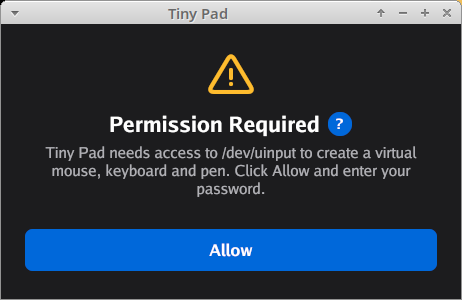
The first time, Ilopad shows Permission Required: it makes a virtual mouse, keyboard and pen, and for this it needs access to the input device. Click Allow, enter your password and click Authenticate.
Pair your iPhone
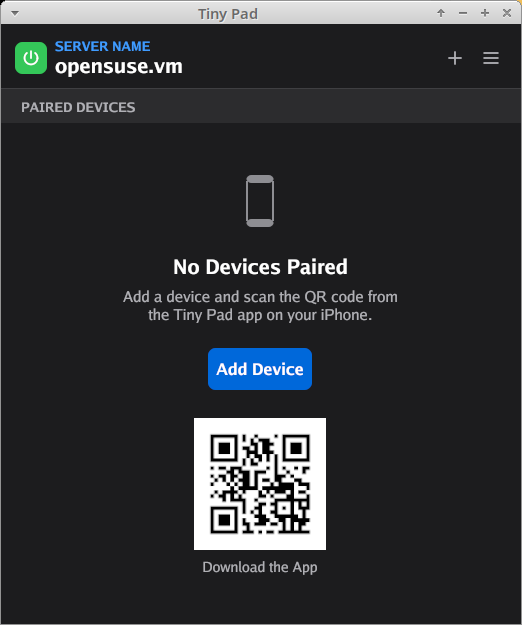
The Ilopad window opens. The package already opened its network ports (UDP 4444 and 5353) in the firewall, so Ilopad does not ask for your password again.
Installing graphically
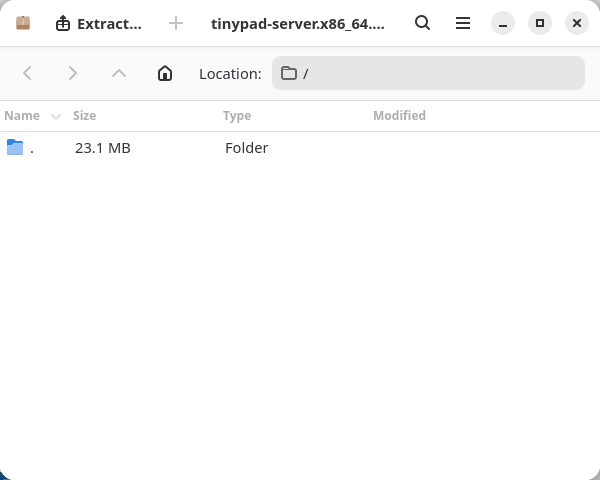
On openSUSE, a double-click on a downloaded .rpm file does not install it. On the Xfce desktop the package opens in the Archive Manager, which only lets you browse or extract the file.
Use the repository steps above to install Ilopad. If you would rather install one release by hand, download the package, then import the signing key and install the package from a terminal. Without the key, zypper stops with Signature verification failed. Ilopad will not update itself that way. Then start Ilopad as in steps 3 to 5 above.
Uninstall
To remove Ilopad, with its settings and the permissions that it added, follow Uninstall on openSUSE.